
There are times when you may want to temporarily assign a WordPress role to a user and have it automatically revert to a different role after a certain period. For example, you might offer a subscription where a user pays for one year of extended access, which is then automatically downgraded after the year ends.
To achieve this, you can use the AAM plugin to configure temporary access for any user on your website. This feature is completely free, and here’s how to set it up:
- In the AAM “Users & Roles” widget, switch to the “Users” tab and locate your desired user. Use the search bar to find a user by name or login if you have a long list of users. Alternatively, you can filter the list of users by role using the drop-down menu above the list.
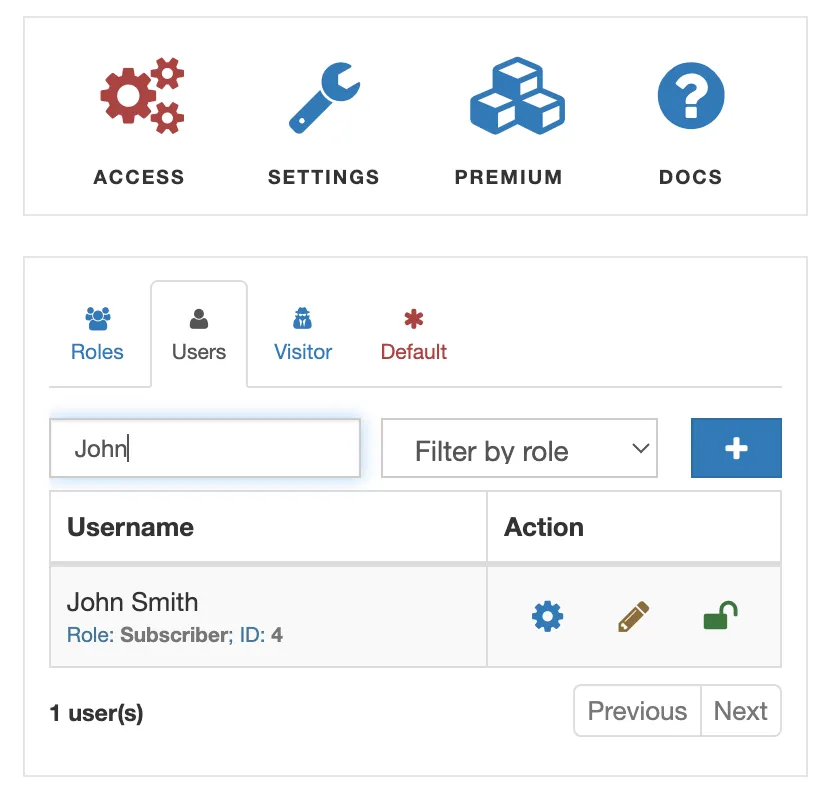
- Click the “edit user” (yellow pencil) button. This opens the “Manage User” modal, where you can define a temporary user account.
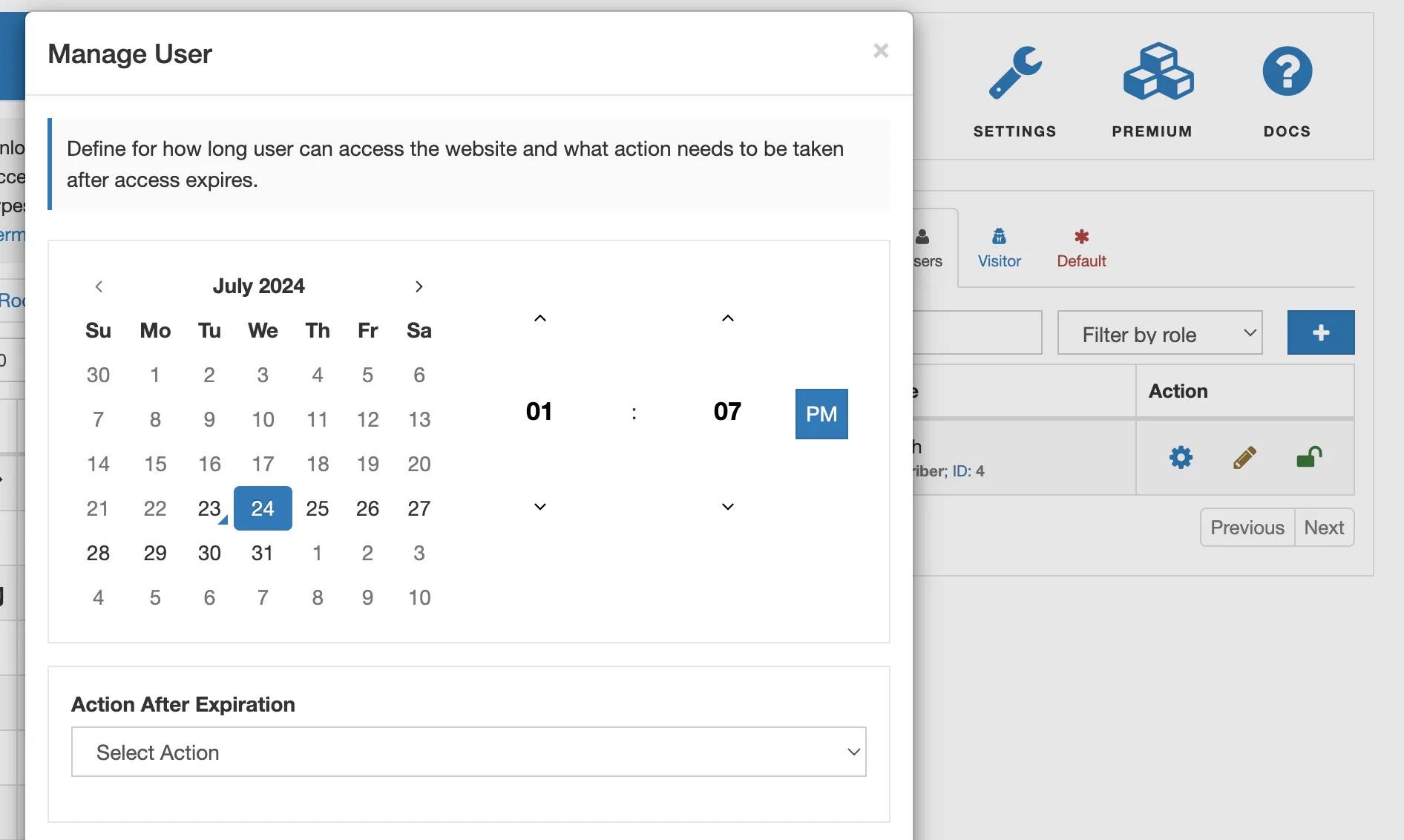
- Select a future date from the calendar. This date will be the threshold after which a specific action will change the user’s access. You can be very specific and even define the exact time of day when the action will occur.
- From the “Action After Expiration” drop-down menu, choose the “Change User Role” option. This will prompt you to select the role to which the user will be changed after the expiration date. Note: If your desired user has more than one role assigned at the time, they will be reassigned to only one selected role.
- Click the “Save” button. The system will automatically track the user’s expiration and change their role to the selected one after the specified date/time. A small “red clock” icon will appear next to the user’s item, indicating that an expiration action is defined.
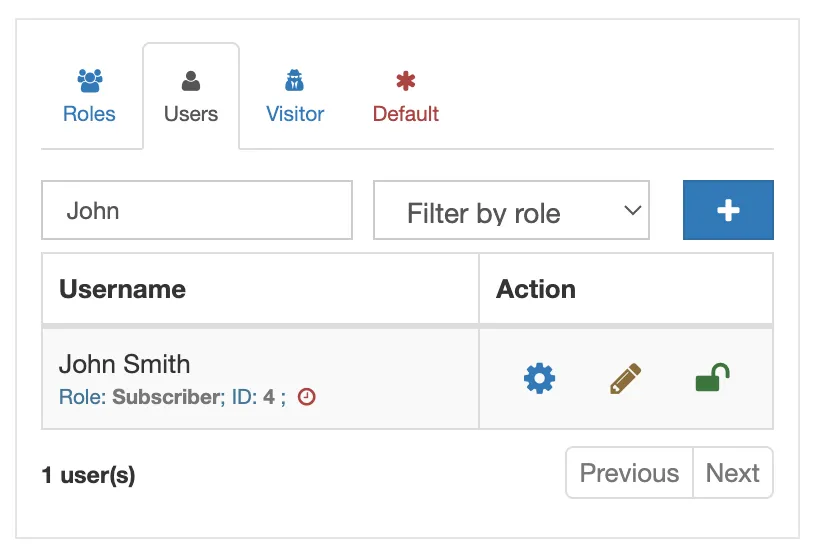
You can always reset the expiration by clicking the edit button again and then selecting the “Reset” button.