
The WordPress Abilities API gives plugins and WordPress core a standard way to describe actions a site can perform. Each ability has a name, a purpose, and an execution path. An MCP adapter can make those actions available to AI clients as tools, alongside resources and prompts. That creates useful integrations, and it also creates access decisions that site owners need to understand.
Advanced Access Manager (AAM) brings those decisions into its Abilities & MCP service. You can review registered abilities and MCP primitives, then decide where AAM should allow, deny, or inherit access for the selected access level.
Review individual abilities
Open AAM → Abilities & MCP and select the Abilities tab. The list shows registered abilities, their descriptions, and available exposure labels such as REST or MCP. Search for an ability, then choose Allow, Deny, or Inherit for the role, user, visitor, or default access level you are managing.
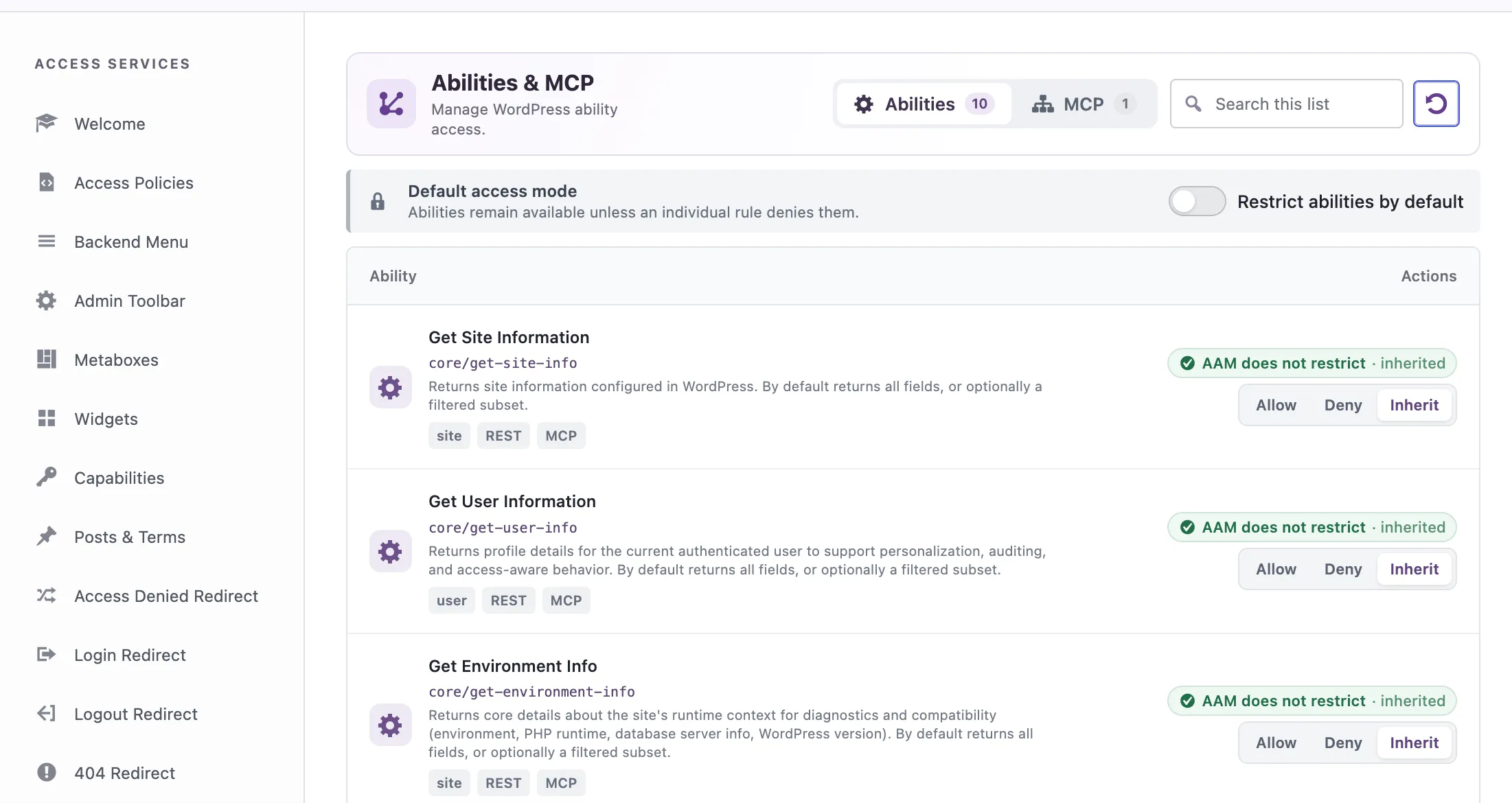
Inherit leaves the decision to the applicable baseline and other WordPress permission checks. Deny adds an explicit AAM restriction. Use Allow only when you have reviewed the ability and its intended users; it does not replace the ability’s own WordPress permission callback. The Restrict abilities by default switch changes the starting posture for abilities at that access level, so test it carefully before enabling it on a busy site.
Govern the MCP server and its primitives
The MCP tab shows registered servers. Expand a server to review its Tools, Resources, and Prompts separately. A server-level rule controls the server as a whole, while primitive-level rules let you make a more specific decision for an individual tool or other exposed item.
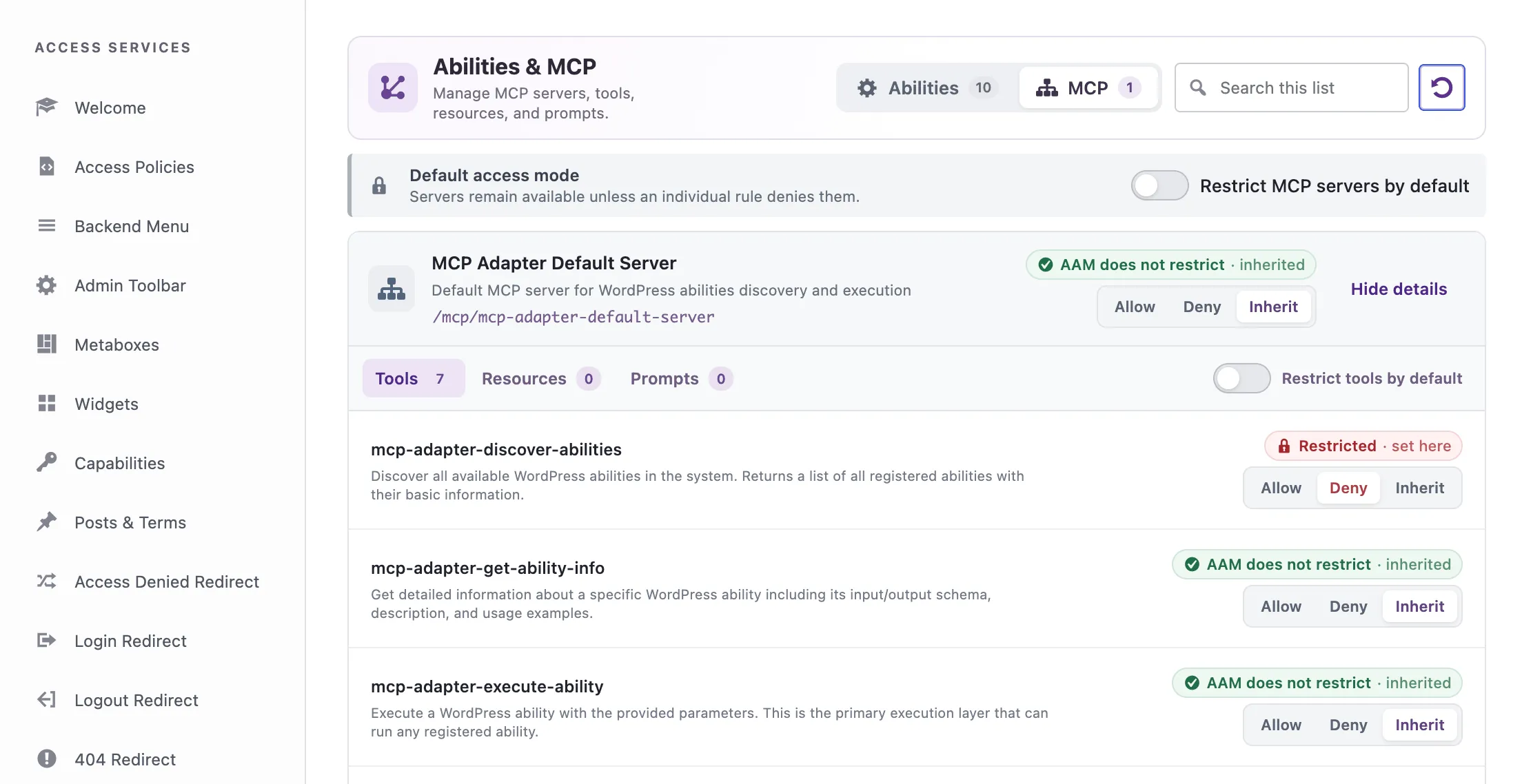
The screenshot shows one tool explicitly restricted while the server and other tools inherit their access. This is a useful pattern when most of an integration is acceptable but one action needs a tighter boundary. The MCP tab also has default restriction switches, including a tool-level default, for teams that want a stricter baseline.
Start with the action, then test the path
Before changing a rule, answer three questions:
- Which WordPress identity will the client use?
- Which ability or MCP primitive does it need to discover or execute?
- What should happen when that identity tries the action directly?
Apply the narrowest rule that expresses the answer. Then test with the same identity and client path that will be used in practice. An AAM Allow setting should not be treated as a substitute for the ability’s permission_callback, authentication, or ordinary WordPress capabilities. The WordPress MCP Adapter documentation explains how abilities are exposed to MCP clients and why those permission checks still matter.
For access to the underlying HTTP routes, also review how AAM secures WordPress REST API endpoints. Together, these controls help keep the identity, the route, and the action aligned with the access you intended.